Live Inbox & Human Handover
Monitor AI conversations in real-time, manage tickets, and step in when human empathy and judgment are required.
Page Overview
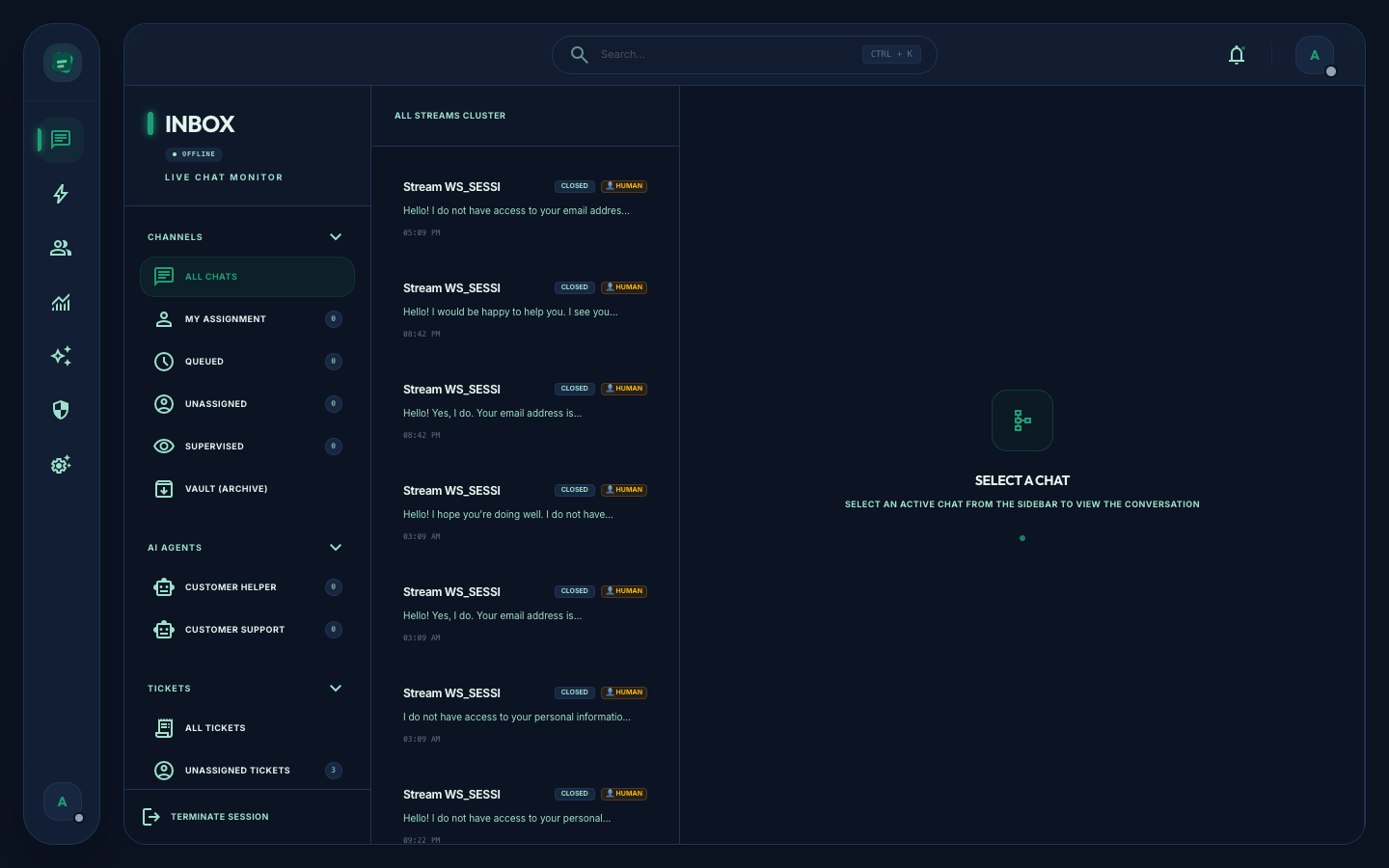
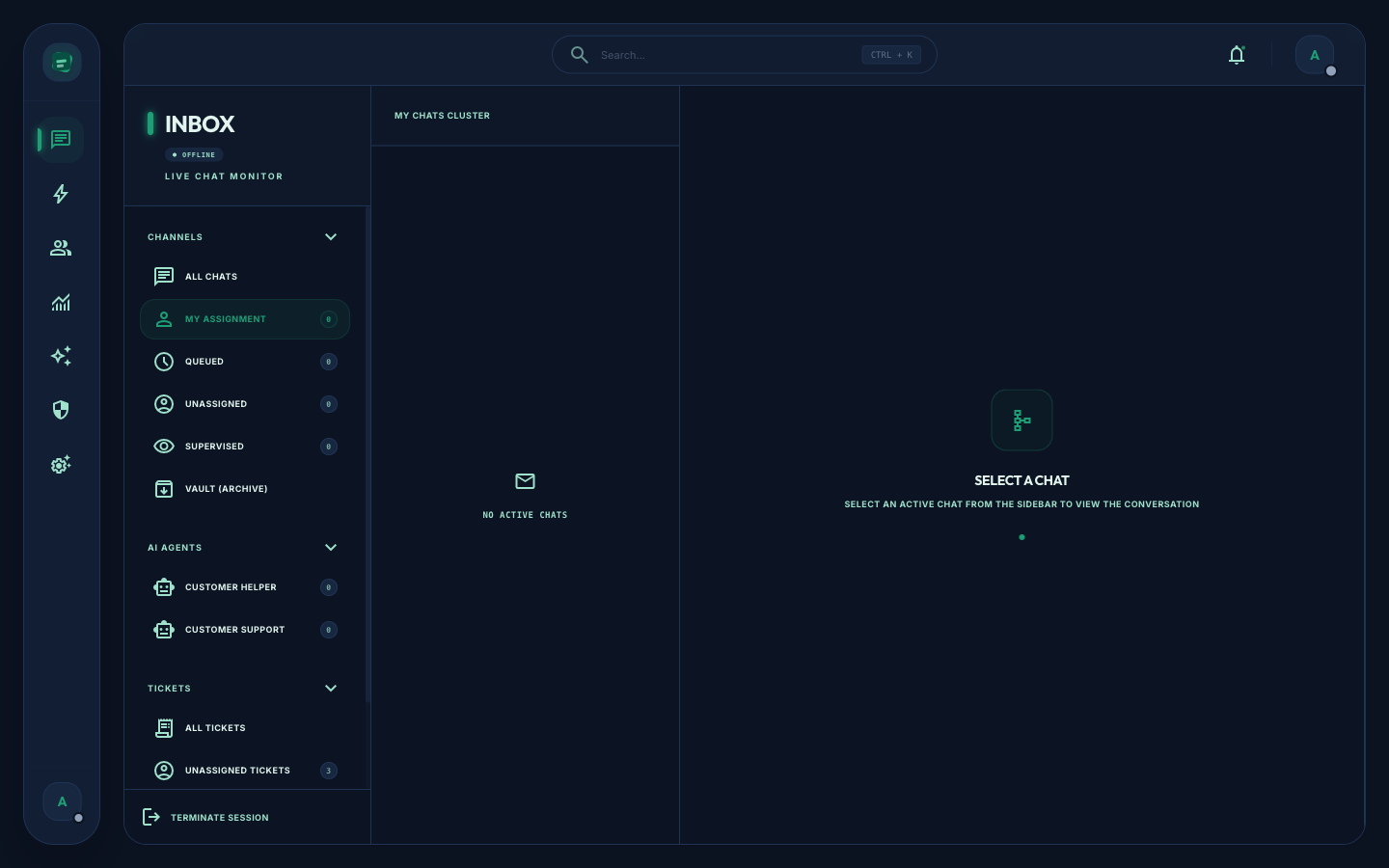
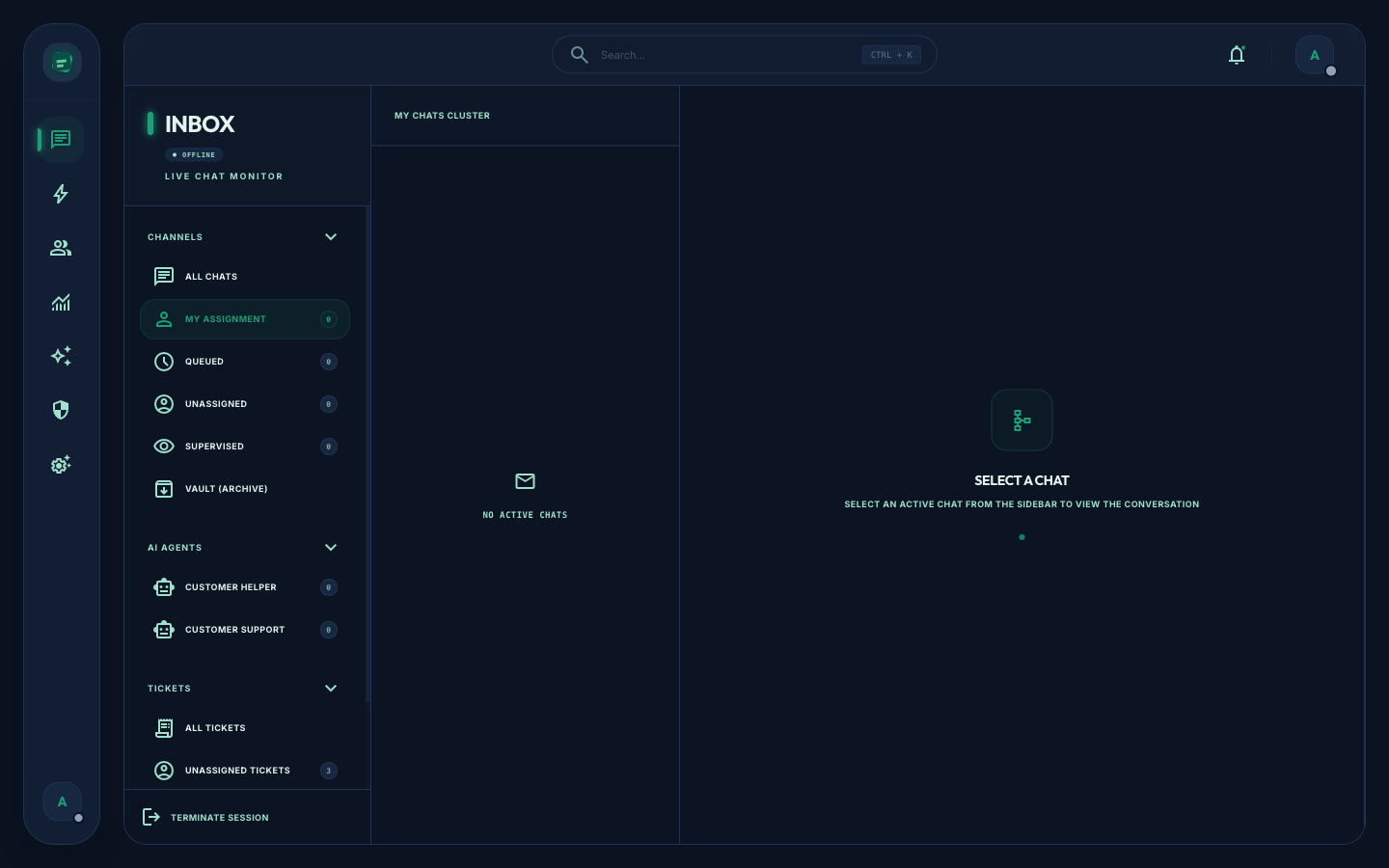
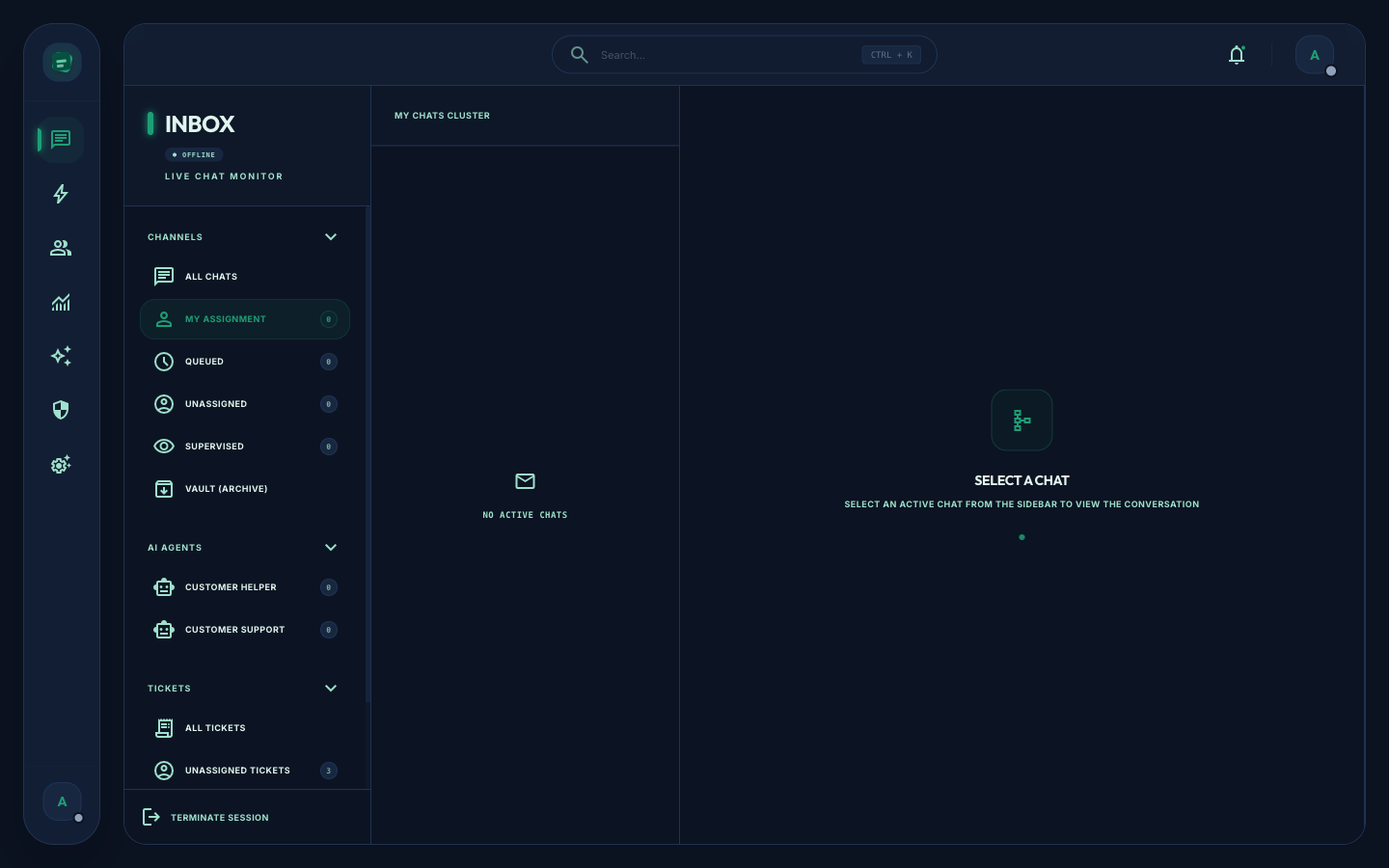
The Verabase Live Inbox is designed to give support agents a complete, real-time interface for managing customer interactions. The workspace is divided into a three-column layout, providing an efficient workflow from navigation to detail lookup.
Three-Column Layout
The workspace consists of three panels:
- Sidebar Navigation (Left): Contains the availability status toggle, the main inbox views, the Tickets filters, and the active AI Agents section.
- Chat List (Center): Displays active or historical conversations belonging to the selected view, complete with badges, timers, and priority indicators.
- Details Panel (Right): Renders the active conversation window, the reply composer, and context tabs (including the CRM side panel).
Header Toolbar
At the top of the chat list and details panel sits the header toolbar, which provides access to critical actions:
- Export Button: Located in the top header toolbar, allowing agents to export transaction logs and customer conversation histories to Excel for reporting and auditing.
- Search Field/Button: Positioned in the inbox. It allows agents to search across all chats, contacts, and tickets. Matching results are displayed dynamically as you type.
- Live Chat Monitor Badge: Positioned at the top of the chat list panel, this badge provides a real-time status indicator showing active monitoring counts.
Sidebar Navigation Views
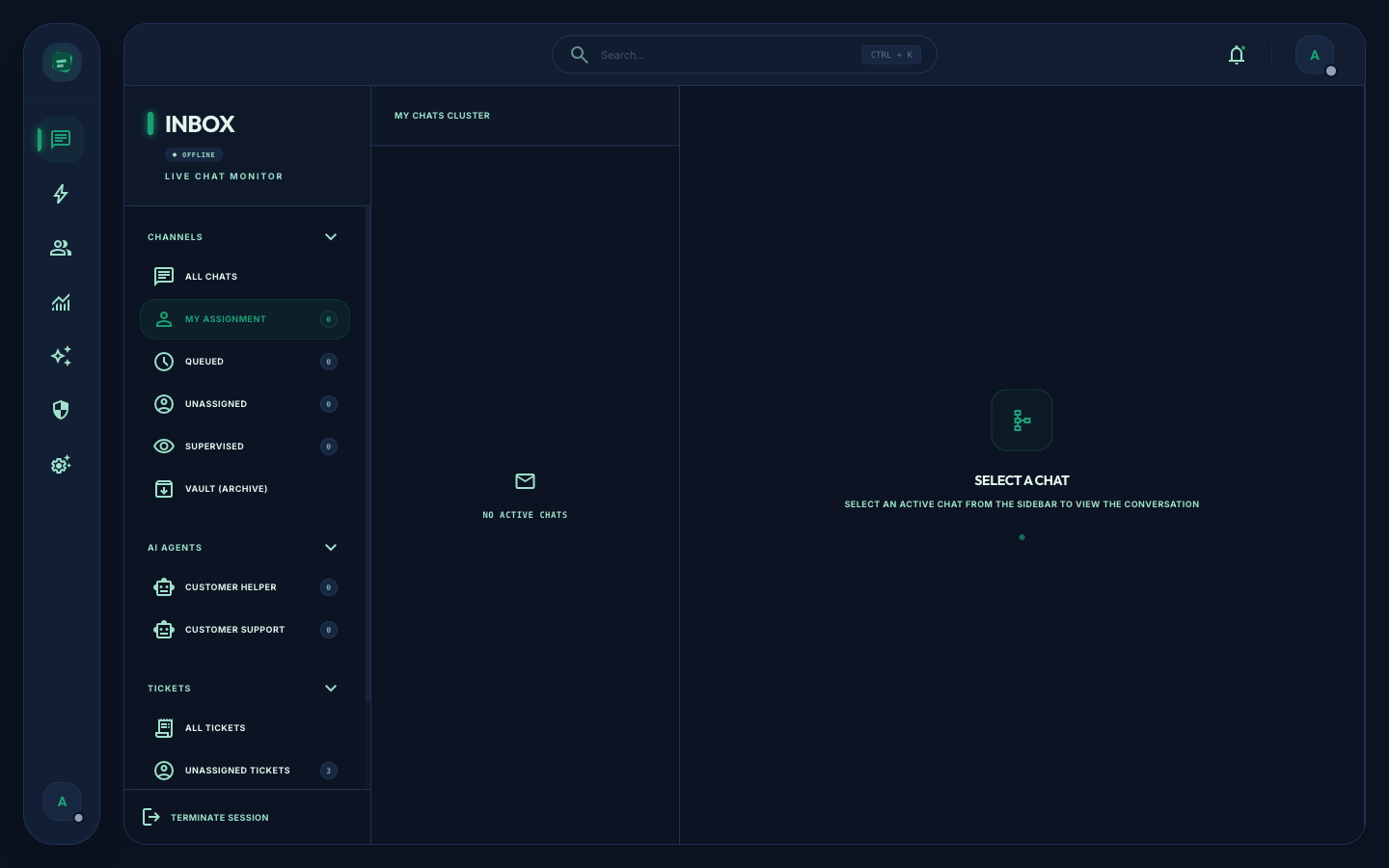
The sidebar provides access to the 7 main navigation views:
AI Agents Section
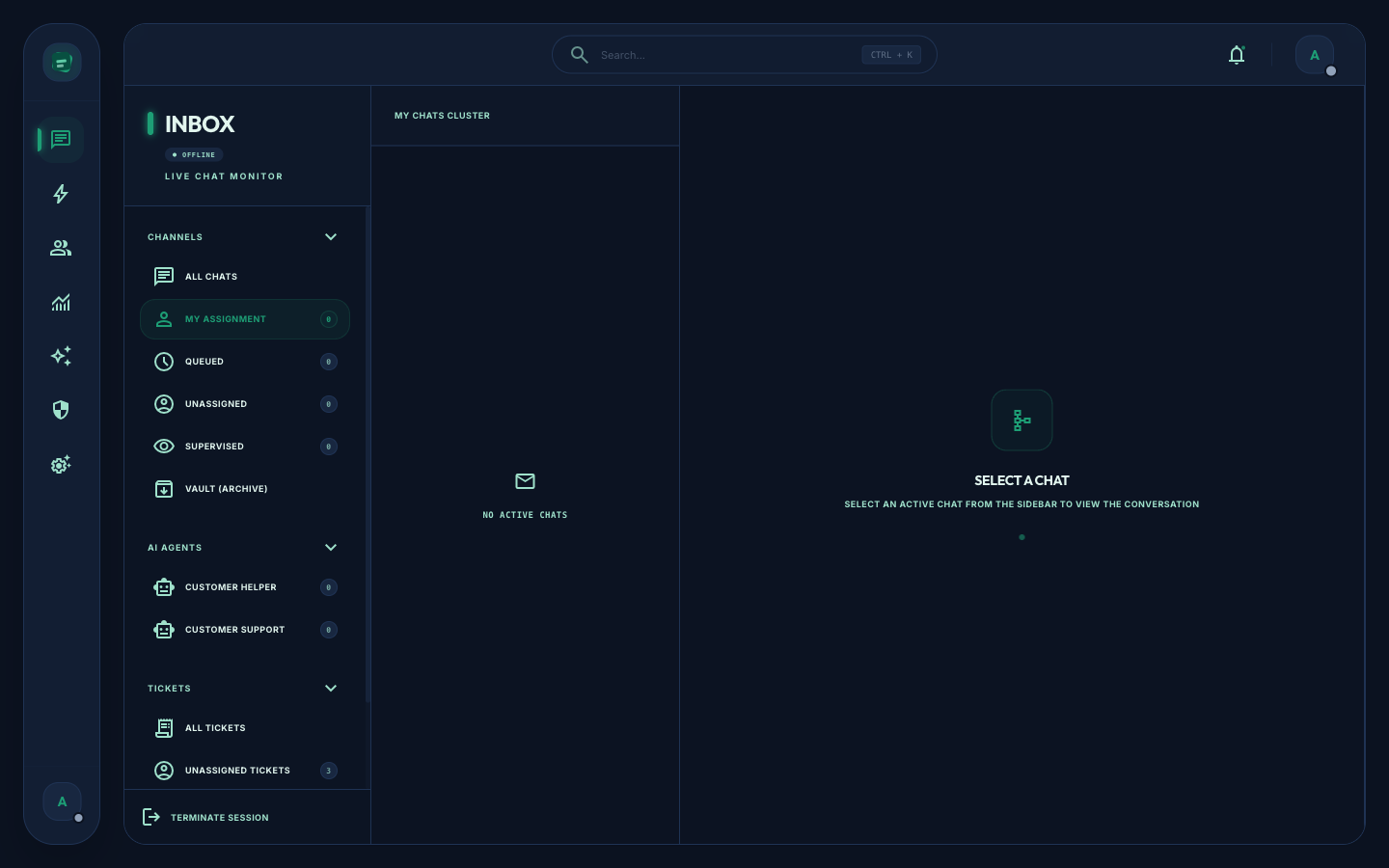
Directly beneath the primary views in the sidebar is the AI Agents section, listing the autonomous agents currently active on your channel:
- Customer Helper: Provides basic search assistance and FAQ lookups.
- Customer Support: Dedicated support agent handling multi-turn transactional workflows.
Admin Conversation History
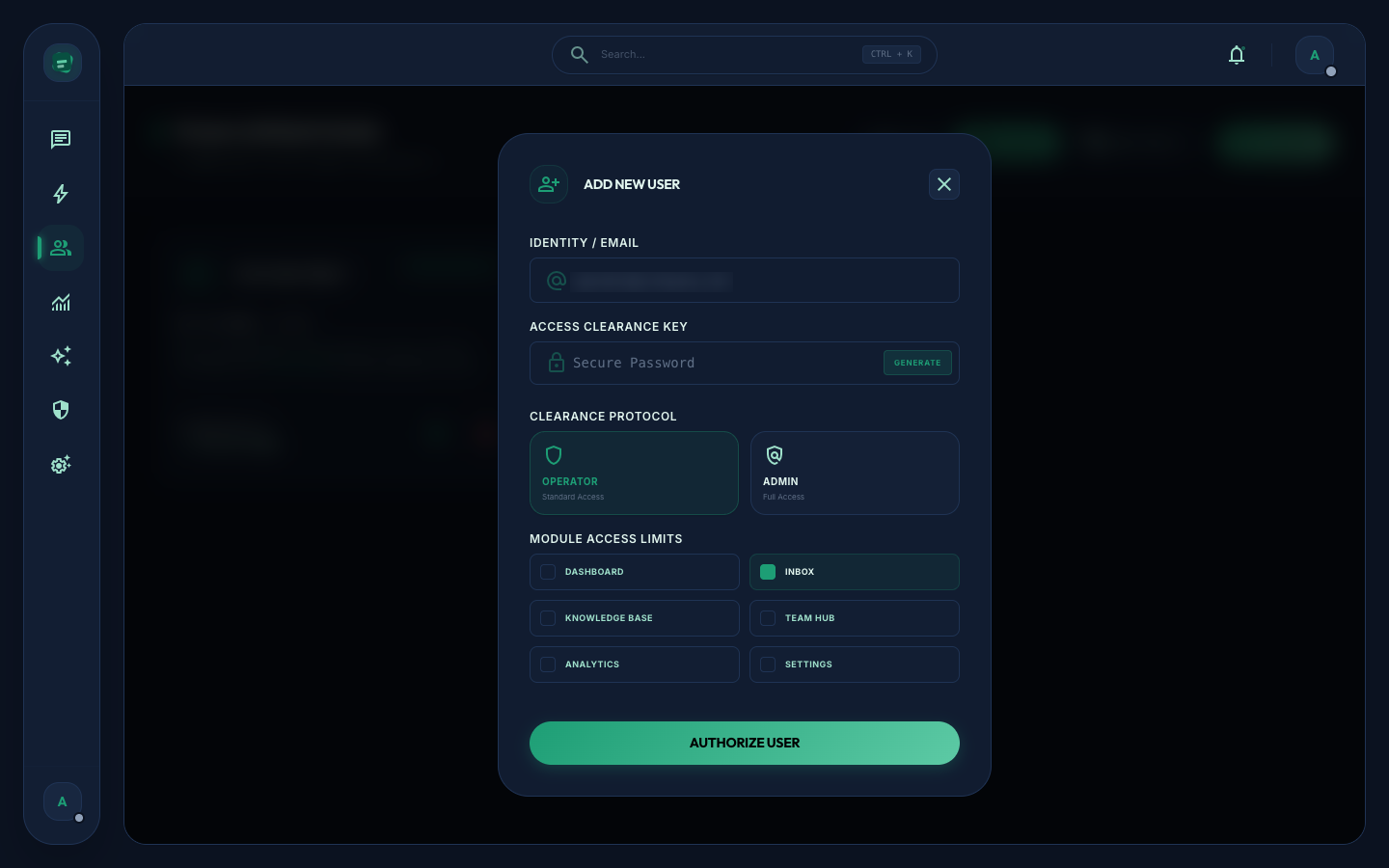
Administrators can access the historical log of all agent conversations directly at the admin URL path: /admin/agent-conversation-history.
Badges and Header Elements
- Verified Review Badge: Displayed in the chat header, showing a checkmark indicator for customers who have been verified.
- Empty State: The details panel displays a default "Select a Chat" empty state until a specific conversation is active.
My Assignment
The My Assignment view displays the list of chats currently assigned to you. It replaces the legacy "My Chats" view. The sidebar item includes a dynamic badge count that updates in real-time, showing the number of unread customer replies awaiting your action.
Automation
Verabase balances AI speed with human empathy through structured automation rules and seamless agent handoffs.
Triggered Responses
AI agents handle standard inquiries automatically by querying the Self-Healing Knowledge Base and formulating verified responses. They will continuously monitor active conversation parameters and draft custom answers.
AI-to-Human Handoff Logic
When a customer request falls outside the AI's capabilities, the conversation escalates to a human operator. The AI moves the conversation to the Unassigned queue automatically.
To claim the escalated conversation, you select it and click the action button to assign it to yourself.
Once a conversation is active, agents can utilize private internal notes to coordinate during handoffs or reassignments. These notes are entirely private and only visible to the internal support team.
Terminate Session Button
To conclude a conversation and end the active chat thread, agents can use the dedicated Terminate Session button located directly within the conversation workspace. This terminates the session and returns the details panel to the empty state.
Tickets
For support cases that require follow-up work or asynchronous communication, Verabase manages tickets alongside live chats. The sidebar includes a dedicated Tickets section featuring four filters:
- All Tickets: A list of all active and closed tickets in the system.
- Unassigned: Tickets that have been created but have not yet been assigned to an agent.
- Open Assignments: Active tickets currently assigned to you.
- Resolved: Tickets that have been completed and closed.
CRM
CRM Side Panel Display
When a conversation is active, the details panel includes a CRM sidebar. If a customer is found, the CRM side panel displays the customer's contact record, open deals, and past ticket histories automatically.
CRM Provider Configuration
Status Controls
Agents manage their presence states using the status toggle at the top of the sidebar. Verabase supports three availability states, each with its own visual indicator:
- Online & Ready: Active and ready to receive incoming chats. Visual indicator is a green dot.
- Away / On Break: Temporarily away, incoming chats route to other available agents or fallback queues. Visual indicator is an orange dot.
- Go Offline: Offline, stopping all routing of new assignments. Visual indicator is a green button state.
Admin Sections
Admin and supervisor queues enable team managers to oversee support quality and routing performance. The inbox contains individual sections for each queue type:
- Queued: Houses chats that are waiting for an agent to pick them up or for automated routing rules to assign them.
- Unassigned: Conversations escalated by the AI due to safety triggers or direct escalation requests. They remain here until claimed.
- Supervised: Active chats that are being shadowed by supervisors.
- Vault (Archive): Completed and resolved chats that are archived for historical records.